
MyNISSAN®
Nissan North America, Inc.Auto & Vehicles
4.63.25K Reviews
- Version
- 7.1.32
- Installs
- 1.00M
- Age Rating
- Everyone
Screenshots
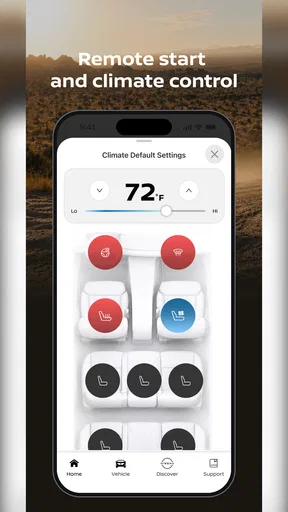
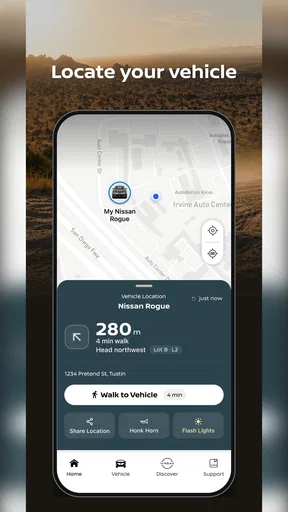
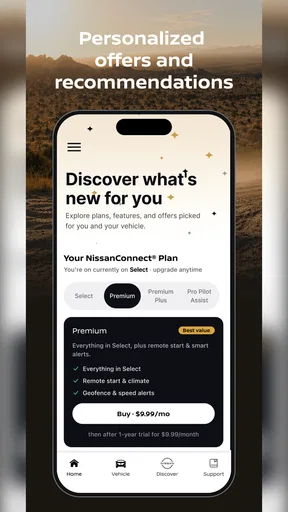
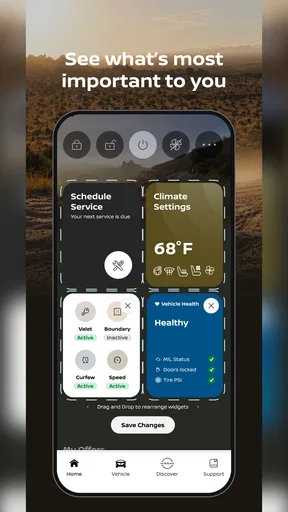
Our Review of MyNISSAN®
 Analysis by Appyee
For many drivers, the most useful car app is not the one with the longest feature list. It is the one that reduces small obstacles at the right moment: finding the vehicle in a crowded lot, checking whether it is ready before leaving home, or handling a simple task without standing beside the car. That is the role I found for MyNISSAN®, a free Auto & Vehicles app from Nissan North America, Inc. It is designed around remote interaction with a Nissan vehicle, so its value depends less on entertainment and more on how comfortably it fits into everyday routines.
I approached it as someone who wants a practical extension of the car rather than another app to constantly manage. The experience is especially interesting when viewed through accessibility and changing circumstances. A driver may have limited reach, reduced dexterity, difficulty reading small interface elements, hearing loss, temporary mobility limitations, or simply be trying to use the phone while carrying shopping bags. My overall impression is positive: the app can remove several physical steps, but it does not make every part of vehicle ownership accessible by itself. Some of the most important controls still depend on the vehicle, the phone, connectivity, and the account setup working together.
How clearly the app presents its controls
The first thing I noticed is that the app’s purpose is easy to understand. It is not trying to become a general navigation, fuel-price, or driving-social platform. The central idea is remote control of a Nissan car from a phone, and that focus gives the interface a practical character. When I open it with a specific task in mind, I am not looking for a maze of unrelated content. That matters for anyone who gets overwhelmed by crowded screens or who needs to complete an action quickly.
For readability, the strongest approach is to treat the app as a task tool rather than browse through it casually. I would keep the phone’s text size and display settings at a comfortable level, use the operating system’s built-in contrast or enlargement options when needed, and avoid trying to operate it while walking through a busy parking area. These adjustments are not special MyNISSAN functions, but they can make a meaningful difference because remote vehicle controls are most useful when the next action is obvious.
Navigation feels more manageable when I decide what I want before opening the app. For example, I might be checking the vehicle’s state, preparing the cabin before a trip, or trying to identify the car’s location. That simple habit reduces unnecessary taps and helps when concentration is limited. I also recommend taking a few minutes at home to learn where the main vehicle actions appear, rather than attempting to understand them for the first time in rain, darkness, or a crowded garage.
The app has a broad audience: its content rating is Everyone, and it has passed the point where only early adopters would consider it. It has more than half a million installs, with an average rating of 4.7 from roughly twenty-eight thousand ratings and around three thousand reviews. Those figures suggest that the basic idea is resonating with many drivers, although they do not guarantee that every Nissan model, phone, or account setup will feel identical.
One practical limitation is that a clean interface cannot solve uncertainty about the car itself. A remote command may be easy to locate, yet I still need to understand what result to expect and whether the vehicle is in a suitable situation. I would not treat a button as a substitute for checking the surroundings. If another person, pet, or object is near the car, the responsible step is to verify the area directly rather than rely on a phone screen.
Useful preparation before relying on it
I found the most accessible workflow begins before an urgent need appears. After installing the app, I would sign in, connect the vehicle as required, and test the available controls while the car is parked safely at home. This is a better time to notice account friction, delayed responses, or unfamiliar wording. It also lets a family member learn the same routine without pressure, which can be valuable if one driver has limited mobility or needs help managing the vehicle remotely.
I would also place the app somewhere easy to reach on the phone’s home screen. That sounds minor, but it reduces visual searching and hand movement when I am carrying a bag or standing outside in poor weather. If several people use the vehicle, agreeing on who is responsible for remote actions avoids duplicated commands and confusion. In my experience, accessibility often comes from a predictable routine as much as from an individual interface control.
Motor, sensory, and cognitive considerations
The clearest strength is the reduction in physical travel. If I have difficulty walking from a house to the driveway, reaching into the car repeatedly, or moving around a large parking area, remote access can remove unnecessary steps. Someone recovering from an injury may also appreciate being able to prepare for a trip before reaching the vehicle. This does not eliminate the need to get into the car and drive, but it can make the transition from home to vehicle less demanding.
Limited hand movement is a more mixed case. A phone may be easier to operate than a physical key or repeated car-door actions, particularly when the device is already in hand. On the other hand, small touch targets, accidental taps, screen glare, and the need to hold the phone steadily can still create difficulty. I would use the phone with one hand only if the controls are familiar and the surroundings are safe. For anyone with tremors or reduced precision, pausing to confirm the intended action is more important than speed.
For users with low vision, the app benefits from being used alongside the phone’s own accessibility settings rather than in isolation. Enlarged text, screen magnification, spoken feedback, and a calmer display environment may improve the experience, but I would test each combination personally because enlargement can sometimes make a screen require more scrolling. The most helpful habit is to learn the sequence of a task in advance, so the user is not trying to interpret every element under pressure.
People with hearing loss may find a visual phone-based workflow more useful than relying on an audible signal from the vehicle. However, I would not assume that every status change or warning is communicated in exactly the same way across all vehicles and phones. Important confirmation should be checked on the screen and, when practical, at the car itself. This is particularly relevant in a noisy street or a silent environment where an audio cue could easily be missed.
Cognitive accessibility is another area where simplicity matters. A remote command can feel reassuring, but it can also create doubt if the response is delayed. My advice is to avoid tapping repeatedly when nothing happens immediately. Instead, wait, read the status carefully, and verify the vehicle before trying again. Repeated commands can make it harder to know which action succeeded. A written personal checklist, such as “open app, choose vehicle, select task, wait for confirmation, check surroundings,” can help users who benefit from consistent steps.
The app is not a replacement for every physical control. If the phone battery is empty, the device is unavailable, or the account cannot be accessed, the normal vehicle key and in-car controls remain important. That trade-off is easy to overlook when remote access works smoothly. I would always keep the standard way of entering and operating the car familiar, especially if another driver may need to use it.
A realistic everyday example
Imagine I am leaving a supermarket with a trolley and several bags. I know roughly where I parked, but the lot is busy and the weather is poor. Opening the app before I start walking can reduce the amount of searching and let me prepare for the final approach to the car. If I have a temporary leg injury, that small reduction in effort is more than a convenience: it can make the trip feel manageable. Once I reach the vehicle, I still check that the car is the correct one and that the surrounding area is clear.
Another example is a cold or hot morning when I want to make the vehicle more comfortable before leaving. The phone-based approach may be easier than going outside, starting the car, and returning indoors. The benefit is greatest for people who find repeated trips difficult, including older drivers and anyone with limited stamina. I would still use this kind of preparation thoughtfully, paying attention to where the vehicle is parked and whether the conditions make the action appropriate.
Access in different places and circumstances
MyNISSAN® makes the most sense when the phone is available and the driver has enough connectivity for the app to communicate with the vehicle. That means the experience can vary between a driveway, an underground garage, a rural area, and a crowded urban street. A remote action that feels instant at home may take longer in a location with a weak signal. This is not a reason to dismiss the app, but it is a reason not to build a time-critical plan around an untested connection.
I would test the app in the places where I expect to use it. A user who parks in a basement should learn whether the phone can still reach the service from that spot. Someone who travels often should understand what happens when the vehicle is far from the usual network environment. This kind of trial is especially important for drivers who cannot easily make a second trip to the car if a command does not complete.
Screen access can also change with the situation. Sunlight, rain, gloves, motion, and one-handed use all affect how confidently I can operate a phone. A driver with limited dexterity may prefer to complete the action while stationary, with the phone supported on a stable surface. Someone with sensory sensitivity may benefit from lowering notification volume or reducing visual distractions before opening the app. These are simple adjustments, but they help the app remain usable outside ideal indoor conditions.
There is also a social dimension. Remote vehicle actions can be helpful when a caregiver assists an older relative or when one household member prepares the car for another. At the same time, shared access should be handled carefully. I would make sure everyone understands which vehicle is connected and what each remote action does. A clear household routine is safer than several people experimenting independently, particularly when one person has difficulty reading confirmations or remembering whether a command was sent.
Compared with a traditional key, the app offers more distance and potentially less physical effort, but the key is usually simpler when I am already beside the car. Compared with a generic vehicle-management app, MyNISSAN has the advantage of being tied to Nissan ownership rather than trying to serve every brand. That focus can make it more relevant to a Nissan driver, while a multi-brand alternative may be preferable for someone managing several different vehicles. The right choice depends on whether remote Nissan-specific access or one combined dashboard matters more.
Where the inclusive experience still has limits
The biggest barrier is dependency. The app is only one part of a chain that includes a compatible Nissan vehicle, an active account, a working phone, sufficient battery, and a usable connection. If any link fails, the accessibility benefit can disappear at the exact moment it is needed. I would therefore treat remote control as an additional route, not the only route, especially for users who depend on it to compensate for limited mobility.
Remote interaction can also create a false sense of certainty. A phone may show that an action was requested, but that is not the same as visually confirming the car’s condition. For users with low vision, this makes independent verification more challenging. A trusted helper may be useful in situations where the physical result matters, although relying on another person reduces the independence that made the app attractive in the first place.
People who struggle with passwords, account recovery, or multi-step sign-in may face more difficulty than the store summary suggests. I would complete account setup when calm, record recovery information securely, and avoid waiting until a cold morning or urgent departure. If a family member provides assistance, they should help with the process without casually taking control of the user’s account or phone.
There is also a learning curve for anyone who does not regularly use smartphone apps. The app may be straightforward once familiar, but “straightforward” is not the same as effortless for every user. A short practice session, larger system text, and a predictable home-screen placement can make a noticeable difference. If a driver strongly prefers tactile controls, the standard key and in-car interface may remain more comfortable for daily use.
Software maintenance matters too. The current version is 6.9.110, and the app supports devices running Android 8.1 or later. That makes it suitable for many existing phones, but anyone using an older device should check compatibility before planning around it. I would also keep the phone’s operating system and the app reasonably current, because an outdated setup can introduce avoidable sign-in or display problems.
Finally, remote actions are not a substitute for safe driving habits. I would never operate the app while driving, and I would avoid using it in a way that distracts me in traffic or a public parking area. For a user with attention-related difficulties, preparing the task before walking or driving is much safer than trying to solve it while moving. Accessibility should reduce strain, not shift that strain into a risky moment.
My inclusive verdict for Nissan drivers
After looking at the app through different abilities and contexts, I see MyNISSAN as a useful ownership companion with a clear practical purpose. Its strongest contribution is removing some unnecessary physical steps between the driver and the car. That can matter to people with mobility limitations, temporary injuries, low stamina, or situations where carrying items makes ordinary vehicle access awkward.
I would recommend it most strongly to Nissan owners who regularly want remote access and are comfortable using a smartphone. It is also worth considering for households where one person may need to prepare the vehicle for another. The free price removes an obvious cost barrier, and the Everyone rating makes the app broadly approachable in terms of intended audience. Its popularity, reflected in more than half a million installs and a 4.7 average, supports the impression that it is useful to many owners, though individual vehicle compatibility and personal accessibility needs still deserve attention.
I would be more cautious if the driver has unreliable phone access, lives in places with poor connectivity, dislikes touchscreens, or needs guaranteed physical confirmation without assistance. In those cases, the conventional key and in-car controls may be a better primary method, with the app kept as a secondary convenience if it works reliably. A multi-brand solution may also make more sense for a household that manages vehicles from different manufacturers.
My best advice is to install it before you need it, set up the account at home, adjust the phone for comfortable reading and touch control, and test the remote workflow in every location where you expect to use it. Learn the normal vehicle controls as well, and never assume that a phone command removes the need to check the car directly. Used with those precautions, MyNISSAN® is more than a remote button on a screen: it is a practical way to make Nissan ownership less physically demanding in the moments when small barriers matter most.
Privacy and Permissions
See what permissions an app requests and how it handles your data.
- Calendar
- read calendar events plus confidential information, add or modify calendar events and send email to guests without owners' knowledge
- Contacts
- read your contacts
- Location
- approximate location (network-based), precise location (GPS and network-based)
- Phone
- directly call phone numbers
- Photos/Media/Files
- read the contents of your USB storage, modify or delete the contents of your USB storage
- Storage
- read the contents of your USB storage, modify or delete the contents of your USB storage
- Camera
- take pictures and videos
- Wi-Fi connection information
- view Wi-Fi connections
- Other
- view network connections, expand/collapse status bar, full network access, run at startup, draw over other apps, control vibration, prevent device from sleeping
Verdict
Strengths of MyNISSAN®
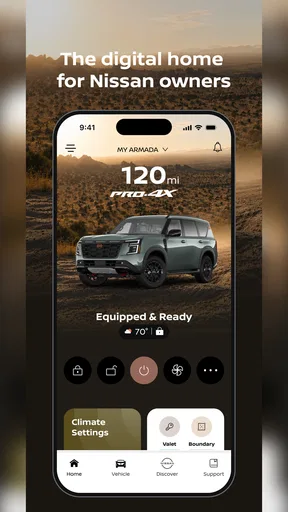
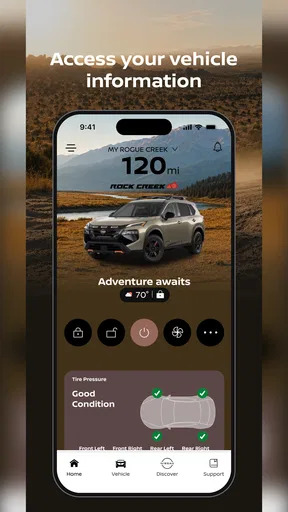
- Remote access to vehicle status, locks, and selected controls
- Service scheduling makes maintenance planning more convenient
- Roadside assistance details are easy to find when needed
- Vehicle information and manuals are available in one place
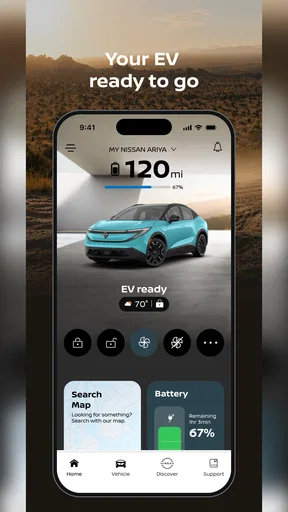
- Useful notifications can help track charging or maintenance updates
Limitations of MyNISSAN®
- Feature availability varies by Nissan model, year, and subscription
- Some remote commands may respond slowly or fail in weak coverage
- Requires a compatible connected-services account and vehicle setup
- Battery and charging features may be limited on older electric models
- Location and vehicle data collection may concern privacy-conscious users
Other Releases by Nissan North America, Inc.
View All
MyINFINITI App
Auto & Vehicles4.7
Similar Picks in This Category
View All
Android Auto
Google LLC4.1

maxim — order a taxi & food
PT. SITO4.7

Штрафы ГИБДД: проверка с фото
Pays LLC – Штрафы ГИБДД4.7

Номерограм – проверка авто
Авто Ассист4.8

Дром Авто
Дром4.9

Frequently Asked Questions
What is the MyNISSAN® app used for?
MyNISSAN® is Nissan’s companion app for managing vehicle-related information and services from a mobile device. Depending on your vehicle, region, and connected-services subscription, it can provide access to maintenance schedules, owner resources, service appointments, roadside assistance, vehicle status, and remote features. The exact tools available may differ by model year and market.
Is MyNISSAN® compatible with every Nissan vehicle?
No. Compatibility depends on the Nissan model, model year, trim level, country, and whether the vehicle supports NissanConnect® or other connected services. Some features may require specific hardware or an active subscription. Before downloading, check the app listing and Nissan’s official compatibility information, then confirm that your vehicle and region support the functions you expect to use.
Does MyNISSAN® require a subscription or additional fees?
The app may be free to download, but certain connected features can require an eligible Nissan vehicle, an account, a compatible smartphone, and an active service plan. Trial periods, included features, and renewal costs vary by market and vehicle. Basic owner information may be available without a paid plan, while remote commands and live vehicle services may require a subscription.
Can MyNISSAN® remotely lock, unlock, or start my vehicle?
Remote controls may be available on supported Nissan vehicles, but they are not guaranteed for every model. Depending on the vehicle and subscription, the app can potentially support functions such as locking or unlocking doors, locating the vehicle, checking selected status information, or starting the engine remotely. Availability also depends on cellular coverage and vehicle settings.
What should I do if MyNISSAN® cannot connect to my vehicle?
First, verify that you are signed in with the Nissan account linked to the vehicle and that your phone has a reliable internet connection. Check whether the vehicle is in an area with cellular coverage, update the app, and confirm that connected services are active. If the problem continues, restart the app and contact Nissan support or your dealer.
